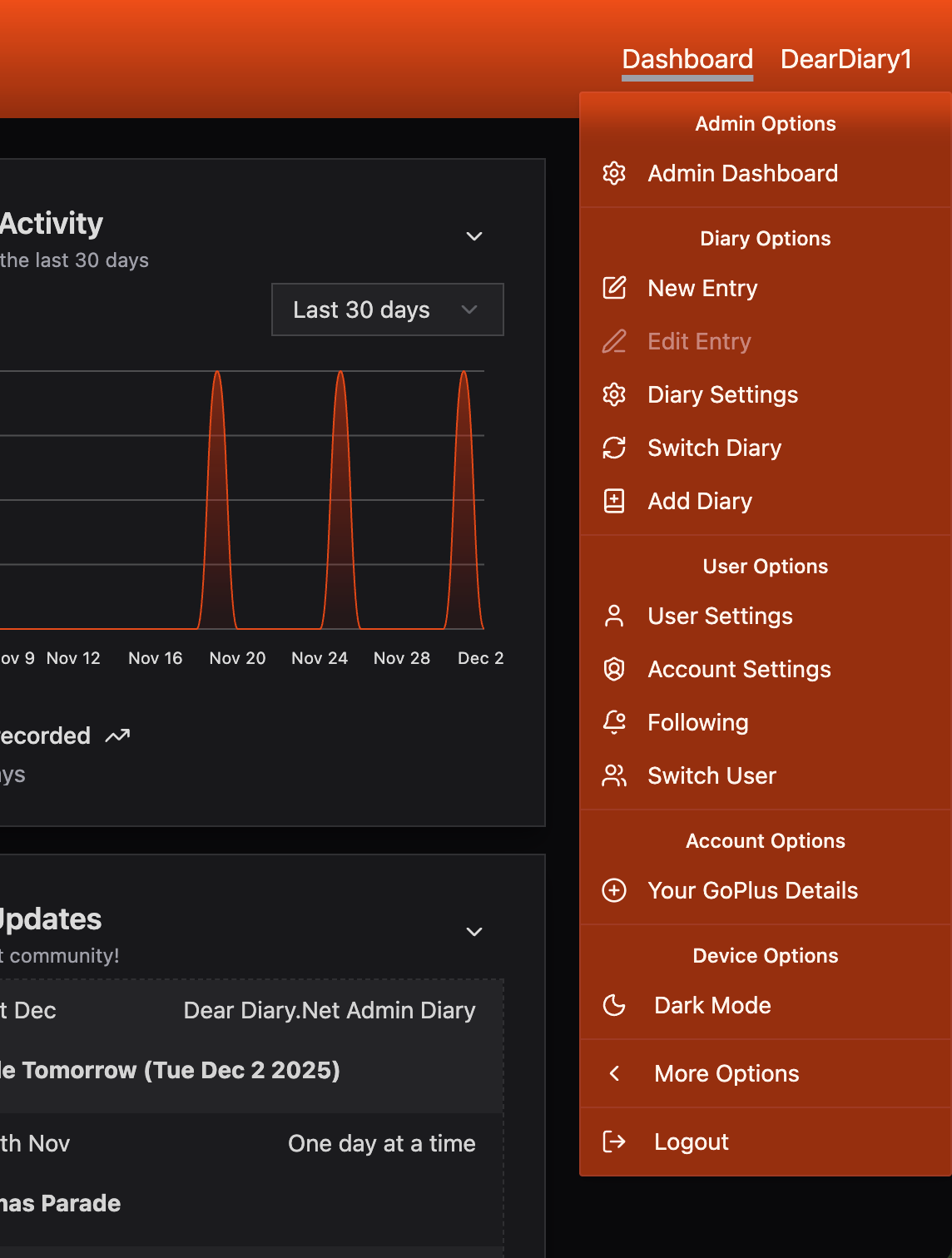

So, the new upgrade is now in place. There have been some teething troubles but I think it's running properly now. There are some changes compared to the old system. So for those of you familiar with the old system, here goes!
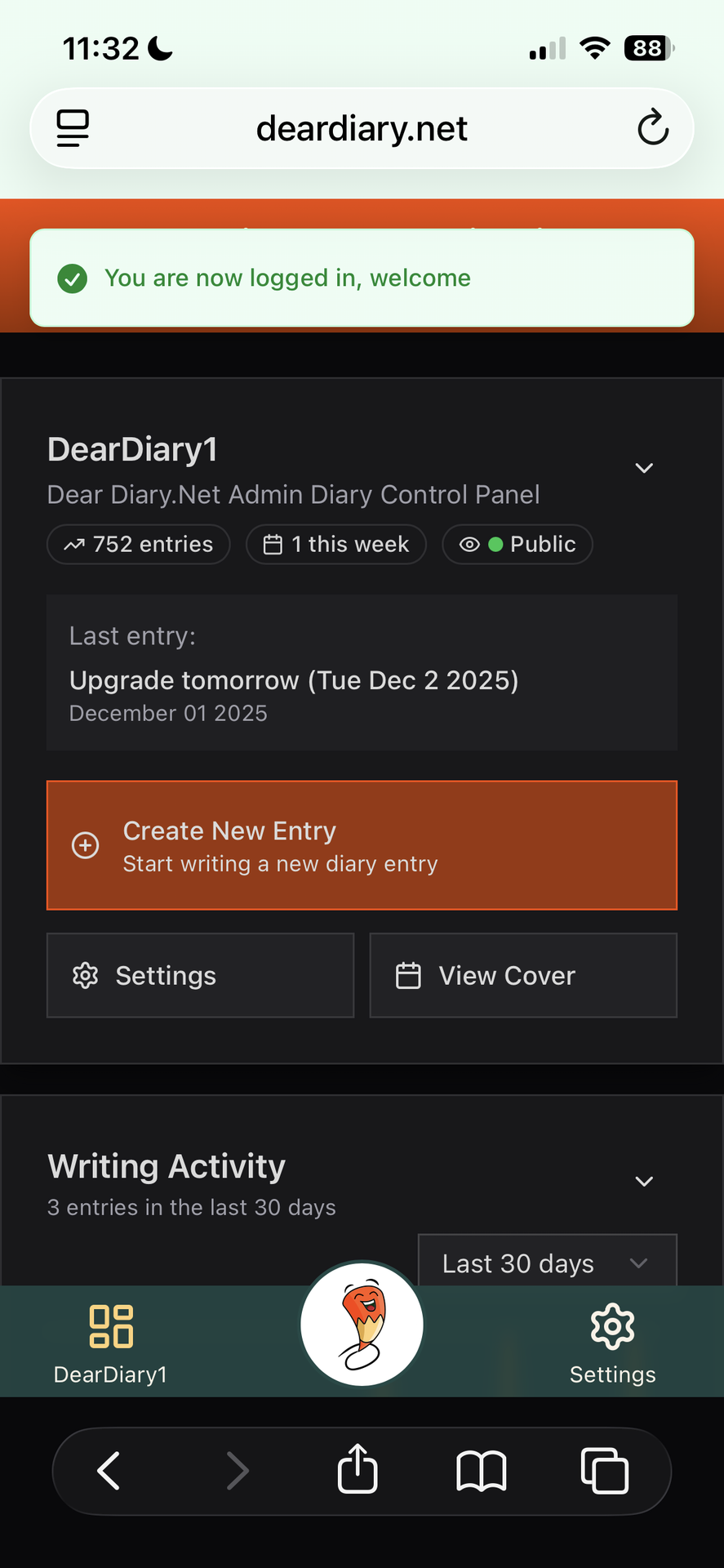
Mobile experience is very different. There is now a permanent button bar at the bottom (except when writing entries because the keyboard takes up so much space, that bar would leave limited room for editing).
As you can see in this image - it's the DearDiary Pencil. You can also see from this image that once logged in, the Dashboard is quite different to the previous version.
Hopefully it's far more intuitive and provides more information too.
In both desktop and mobile we've changed the way we use DearDiary somewhat. Everything now revolves around a 'selected diary'.
Essentially you choose which of your diaries you wish to work on (more on that in a moment) and then the dashboard and all operations (mostly) pertain to that diary.
So in this screenshot, I'm working on DearDiary.Net Admin Diary - so the last entry is the last entry I created on this diary. Create New Entry will create a new entry on this diary. Settings will popup the settings for THIS diary. And so on and so forth. If I switch diary to work on another diary then those buttons will pertain to the diary I switch to.
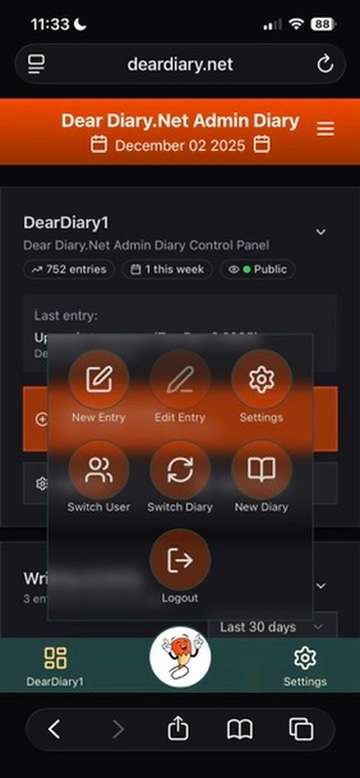 With this in mind, pressing the DearDiary Pencil in the middle of the menu bar will provide you with the buttons you need to operate the currently selected diary.
Buttons that are greyed out (or faded) can't be used in the current context. So in this screenshot, Edit Entry is greyed out because I am not on an entry currently - I'm on the Dashboard. But I can get to the Settings, or create a new diary, switch diary etc.
Some buttons may be missing entirely if they're not relevant to your overall account.
You'll notice in the bottom left hand corner a 'dashboard' icon (in this case with DearDiary1 underneath). This enables you to return to your dashboard no matter where you are currently in the App. It'll have your current username under it, or Dashboard if you've not set a username.
You only need a username if you wish to comment on other people's diaries.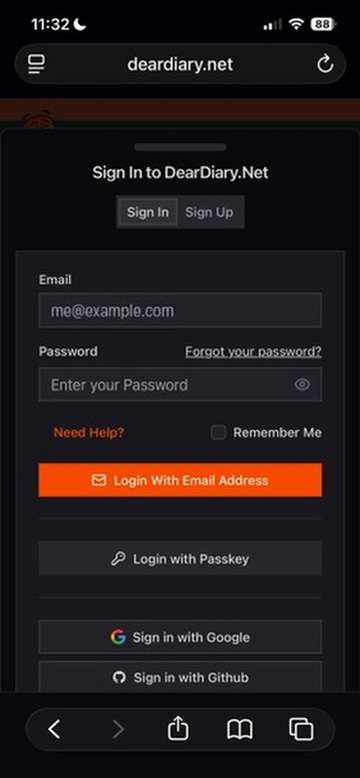
Many screens have now become either popup dialog boxes on Desktop, or 'Drawers' on mobile. Things like logging in, Diary Settings, Account Settings etc, are all now Dialogs or Drawers.
This means if you get a notification e-mail that someone has made an entry (for example) and you visit the page and decide to leave a comment, but you're no longer logged in, the system will prompt you to log in before you can leave your comment.
Crucially though, now you won't lose your place on the entry you were reading and you can continue to leave your comment just as soon as you've logged in.
Previously you would be navigated to a login screen and then have to find your way back to the entry to comment on it.
Many of the other parts of the site that functioned this way can also now be accessed without interrupting the current page.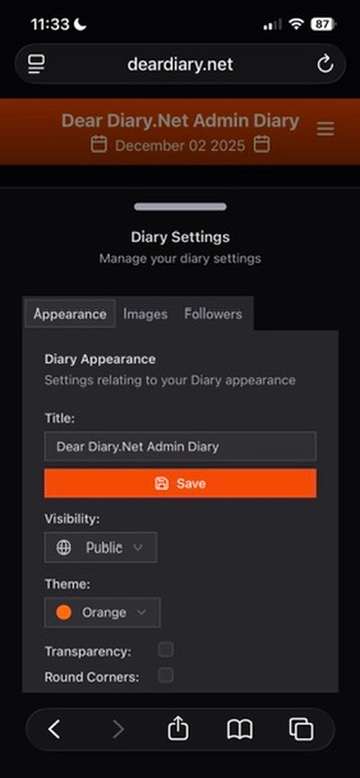
So if you're in the middle of something but decide you want to change your diary settings you can do that.
This is where the concept of the 'current working diary' comes in. If you're working as I am on DearDiary.Net Admin Diary then this is the diary these settings will be applied to. You will need to 'switch diary' to see and apply any settings to any of your other diaries.
We think once you get used to it it'll be a much clearer and cleaner approach than the previous system whereby you could access everything from everywhere but was ultimately very confusing.
Everything is now driven from the dashboard screen and the dashboard screen concentrates on your current diary in general. There are some global things on the dashboard such as the latest updates list (which has had a makeover too).
If you're on mobile you may very well be wondering how you can get access to your diary's calendar or entry list. We realise this isn't abundantly clear at the moment and we're trying to come up with a way to make it clearer. But once you get used to it it's pretty straight forward.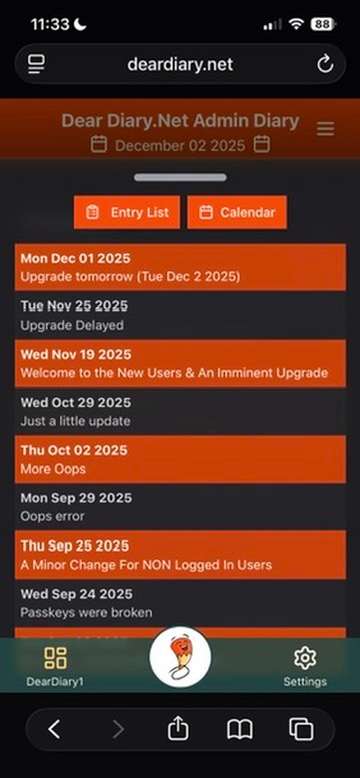
At the top of every screen you will see the title of the current diary. This may be your diary, or it may be someone elses. If it's your diary, you'll see the normal DD Pencil logo in the toolbar.
If it's someone else's diary you'll see the pencil surrounded by a bunch of books. This is intended to suggest that the DD mascot pencil is now in the public library.
Either way, you'll see the Diary Title in the toolbar at the top.Just underneath that you'll see a sub-title. In the picture here the sub-title is today's date because we're currently still on our dashboard.
Clicking this sub-title will bring up the entry list (or calendar) for the current diary. On desktop this will be in a sidebar as it always was. On mobile it will be in a drawer as you can see in this screen-capture. Look for the two little calendar icons and some text in between and you'll know that this will bring up the entries.
I will add another entry shortly with instructions for some more areas of the system but the three big takeaways on mobile are;
The Dashboard button in the bottom left will ALWAYS return you to your dashboard.
The DD Mascot button in the middle is where you will find most of your diary interaction options.
Navigating entries is done using the header bar.
On desktop, you will see the normal menu in the top right hand corner instead of the mascot. The mascot does appear in the header bar on desktop but this will take you to the home page instead. Use the 'Dashboard' link and the 'Username' menu to perform actions on your diary...
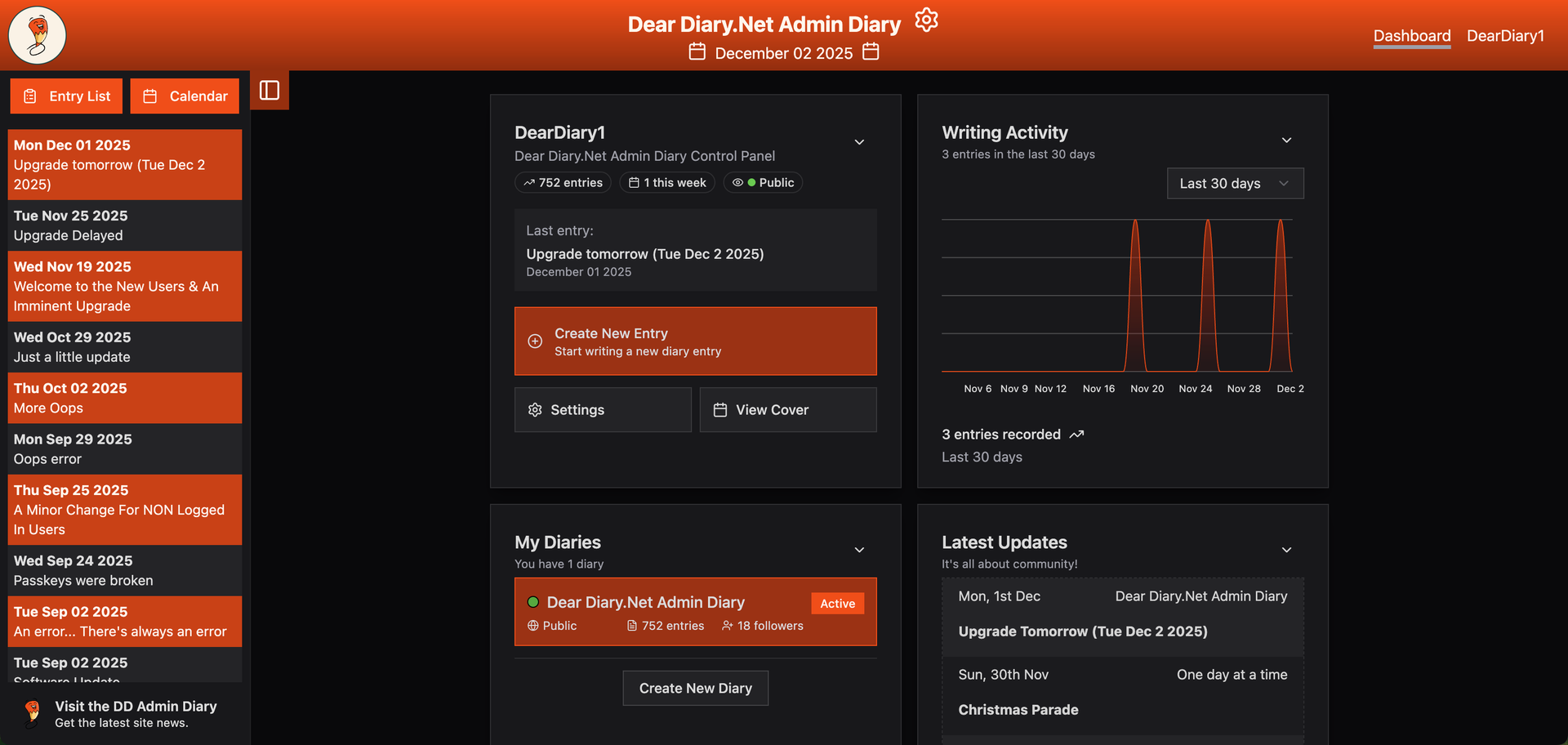
Above is a screenshot from the desktop app, showing that the same information is available but laid out slightly differently. The menu is available in the same location as previously - although the footer has gone and those items are also under the main menu now.